OpenAI Extends Codex App Features in Europe — and Exposes the Real Privacy Tradeoffs of Desktop Agents

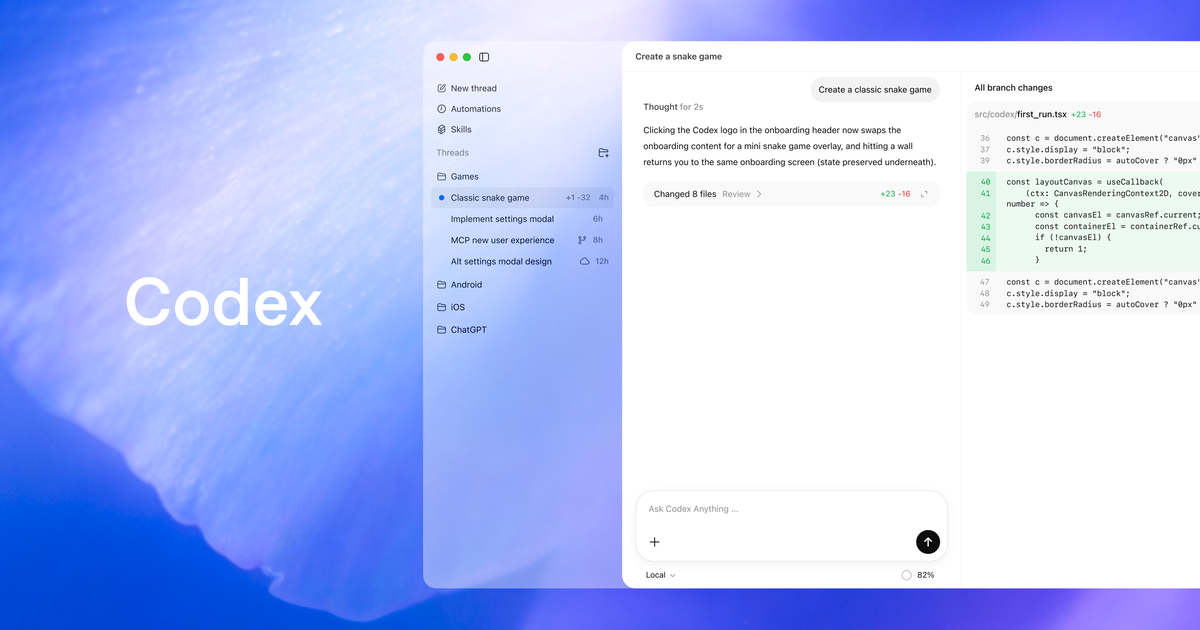
OpenAI updated its Codex changelog yesterday to confirm that more app features are now available in the European Economic Area, the United Kingdom, and Switzerland: Computer Use on macOS and Windows, the Codex Chrome extension, Memories, and Chronicle as an opt-in research preview for ChatGPT Pro subscribers on macOS. That is the kind of announcement that reads like regional housekeeping — availability rollouts happen constantly in software. Read the documentation around it, though, and a different story emerges. OpenAI is not just expanding geography. It is drawing explicit boundaries around what a desktop-agent tool can see, remember, and do — and those boundaries come with risk profiles that vary significantly depending on which feature you are enabling.
The feature that deserves the most scrutiny is Chronicle. OpenAI describes it as an opt-in research preview, Pro-only, macOS-only, rate-limit hungry, and prompt-injection risky. It uses sandboxed background agents to generate memories from captured screen images, and it stores those generated memories as unencrypted Markdown files under $CODEX_HOME/memories_extensions/chronicle/. Screen captures older than six hours are deleted while Chronicle is running. Generated memories are not.
That is a lot of caveat for a feature whose user-facing promise is simple: you do not have to restate your context. The promise is real. Agents waste enormous amounts of time because they lack continuity — because every new thread starts from scratch, because the previous session's reasoning is not available, because the developer has to re-explain the architecture, the constraints, the half-formed plans. Chronicle addresses that by allowing screen context to become durable memory. But durability cuts both ways. If recent screen context can become persistent memory, then meetings, dashboards, credentials, customer data, incident channels, and private documents can accidentally become future prompt context unless users actively pause the feature or keep sensitive material off-screen.
The unencrypted local storage deserves specific attention. OpenAI is commendably transparent about it — the docs do not pretend Chronicle memories are something they are not. But unencrypted local Markdown is not a compliance boundary. It is a file on disk. If the machine is shared, backed up to an unmanaged cloud service, accessed by another process, or simply readable by someone who should not have access to the context that generated the memory, the confidentiality assumption is broken. Teams in regulated industries, or anyone working with sensitive customer data, should treat Chronicle-generated files as they would treat any other potentially sensitive local cache: understand where they live, who can read them, and how to delete them.
The structured-versus-visual hierarchy that OpenAI's docs repeatedly reinforce is the key practitioner takeaway from this rollout. The documentation nudges users toward structured integrations first: plugins and MCP where available, the in-app browser for localhost and local file previews, the Chrome extension only when signed-in browser state is genuinely required, Computer Use when visual GUI operation is the correct tool for the task. That hierarchy is not arbitrary. It is a risk gradient. The more visual and ambient the input — screenshots, browser pages, screen captures — the harder it is to audit what the agent actually saw and acted on. A plugin call has a name and parameters. A browser page has untrusted text, cookies, hidden state, and prompt-injection surface. A screen-capture memory system has everything that was visible on the screen at the wrong moment.
The Chrome extension permissions list is worth examining closely. The extension needs "read and change all your data on all websites," which is the permission level browser extensions require to be powerful — and which is also why Chrome extensions are routinely identified as a major browser attack surface. OpenAI's own confirmations, allowlists, blocklists, and data controls apply before use during a task, which is meaningful. The operative phrase in the docs is "when it becomes part of Codex context." If Codex reads a page, screenshots it, summarizes it, or uses it in a tool call, that content enters the thread. Users who allow the extension to access their Gmail, Salesforce, LinkedIn, or internal tools are extending those systems' trust boundary into the coding agent's context window. That is a real risk. It is also, for many workflows, genuinely useful. The answer is not to refuse the extension — it is to govern its use explicitly: allowlist specific domains, understand what "becoming part of Codex context" actually means for your workflow, and treat the extension as a targeted tool for specific signed-in tasks rather than a general-purpose browser bridge.
Computer Use on macOS and Windows occupies a middle ground in this risk hierarchy. The docs correctly identify its good fit cases: testing desktop apps, iOS simulator flows, browser-required tasks, GUI-only bug reproduction, app settings, data sources without plugins, and workflows spanning multiple applications. On macOS it requires Screen Recording and Accessibility permissions — the same permissions that make screen-sharing apps deeply invasive if compromised. On Windows it runs on the active desktop and can take over foreground input. The admin controls are appropriately granular: [features].computer_use = false in admin-enforced requirements disables it organization-wide. App-level approvals are separate from system permissions, which means Codex cannot unilaterally grant itself access to apps the user has not approved. These are the right abstractions. Whether they are correctly implemented at runtime is the question that security and IT teams need to answer before enabling Computer Use at scale.
For European users and organizations who are now seeing these features for the first time, the practical advice is: do not enable everything at once. Start with Memories only if you understand where the files live and how to disable per-thread. Add Chrome only for specific signed-in workflows and build a domain allowlist and blocklist before using it. Use Computer Use for bounded GUI tasks where files and command output are insufficient. Treat Chronicle as experimental — pause it before meetings, dashboards, customer data, and sensitive browsing sessions; review generated memory files regularly; remember that unencrypted local Markdown is not a compliance boundary; and understand that rate limits will burn through Pro allocations quickly if you leave it running continuously.
What OpenAI is building with the Codex app is a workstation agent: a tool that can see your screen, use your browser, remember your workflows, and operate your desktop applications. That is a genuinely useful thing. It is also a materially different risk profile than a terminal agent that only touches files and command output. The documentation that accompanies this rollout is more honest about that risk than most product announcements would be. Read it accordingly — not as a feature list, but as a risk disclosure with usage examples.
Sources: OpenAI Codex changelog, OpenAI Codex Computer Use docs, OpenAI Codex Chrome extension docs, OpenAI Codex Chronicle docs