SharePoint Copilot Apps Move Microsoft 365 Copilot Past the Chat Box

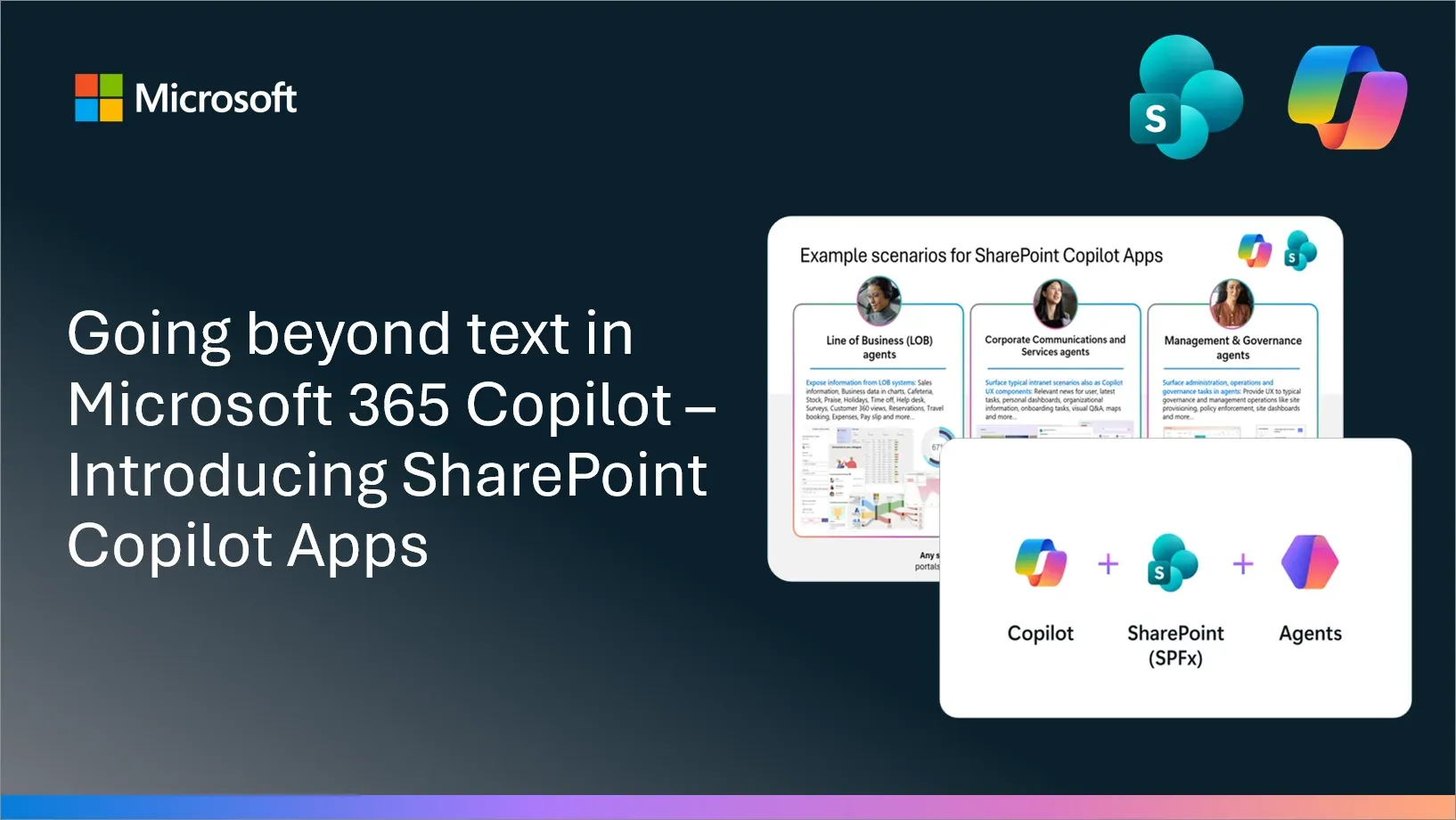
Microsoft’s new SharePoint Copilot Apps announcement is easy to misread as another Microsoft 365 extensibility feature. It is more interesting than that. This is Microsoft quietly admitting that the “chat is the app” era was always going to hit a wall inside real companies.
Language is a good entry point for work. It is a bad final interface for a surprising amount of work. Nobody wants to approve an expense report by decoding a paragraph. Nobody wants to choose a desk, inspect a dashboard, review a policy exception, or compare customer records through a back-and-forth prompt exchange when a table, form, chart, map, or button would do the job faster and with less ambiguity. SharePoint Copilot Apps are Microsoft’s answer: rich, interactive SharePoint Framework components rendered directly inside the Microsoft 365 Copilot canvas.
The preview is scheduled for early July alongside SharePoint Framework v1.24, with general availability planned for later this autumn. Microsoft’s pitch is straightforward: developers bring a component, Copilot hosts it in the flow of work, and the same UX can be reused across Microsoft 365 Copilot, SharePoint, and Microsoft Teams. The bigger point is sharper: enterprise agents are becoming application hosts, not just chat transcripts with better autocomplete.
The right UX is not always another sentence
The useful part of this launch is the split between intent and execution. Copilot can discover what the user is trying to do, route the request to the right agent, summarize context, and explain the next step. But when the work requires precision, review, validation, selection, or irreversible action, a deterministic UI should take over. That is not a failure of AI. That is product design remembering what computers are good at.
Microsoft’s examples make the pattern obvious: expenses, time off, help desk, reservations, travel booking, pay slips, onboarding, maps, site provisioning, policy enforcement, and dashboards. Those are not “write me a haiku about procurement” workflows. They are the small internal applications every enterprise already has, usually scattered across SharePoint portals, Teams tabs, intranet pages, HR systems, IT service desks, and line-of-business tools. The new move is to make Copilot the front door without forcing every completion step to be conversational.
That matters because chat-only enterprise AI has a hidden productivity tax. It can reduce the time required to find something while increasing the time required to complete it. If the agent says, “Here are three desks that match your criteria,” the next thing should not be a paragraph asking the user to type “option two.” It should be a small booking component with availability, location, policy notes, and a confirmation button. The model got the user to the right place. The UI should finish the job.
SPFx is boring in exactly the right way
The technical choice is the strongest part of the announcement. SharePoint Copilot Apps are powered by SharePoint Framework, Microsoft’s recommended SharePoint customization model. SPFx is not trendy, but it is deeply embedded in Microsoft 365 shops. It supports modern web tooling, TypeScript, npm-based workflows, automatic hosting, automatic single sign-on, and reuse across SharePoint, Teams, and Viva Connections. Microsoft says developers can use React, Angular, Vue, Svelte, or plain TypeScript. React shows up in many examples, but it is not a requirement.
That gives enterprise teams a credible migration path. If a company already has SPFx components for dashboards, approvals, employee services, site management, or department portals, the question becomes: which of these should appear contextually inside Copilot? That is a much easier conversation than “please rebuild your internal application estate on a new AI UI framework.” It also means AI coding tools may be genuinely useful here. GitHub Copilot, Claude, Codex, and similar agents are much better at scaffolding and refactoring familiar TypeScript components than they are at inventing a bespoke enterprise interaction model from scratch.
The hosting model also deserves attention. Microsoft says these components are hosted automatically inside the customer’s Microsoft 365 tenant, with no separate Azure infrastructure to stand up, operate, or secure. That will be attractive to teams that already have too many internal apps running as one-off web services nobody wants to patch. But “hosted for you” should not become “owned by nobody.” Copilot-hosted UX still needs release management, accessibility review, telemetry, incident response, rollback, and a clear support path when the expense widget breaks during month-end close.
MCP Apps make this powerful — and inspectable
Under the hood, Microsoft positions these experiences around the MCP Apps model. Microsoft’s Learn documentation describes MCP apps as interactive UI widgets delivered by MCP servers inside Microsoft 365 Copilot declarative agents. The docs list OAuth 2.1, Microsoft Entra single sign-on, and anonymous authentication for development scenarios. They also document a widget host under a hashed usercontent.microsoft.com domain, which production teams need to account for in CORS and identity-provider allowlists.
That detail is not trivia. It is the difference between a demo and a deployment. The Microsoft Learn capability table shows that Copilot supports several OpenAI Apps SDK and MCP Apps primitives, including window.openai.callTool, window.openai.sendMessage, window.openai.requestDisplayMode, widgetState, output templates, visibility metadata, CSP connect domains, and read-only hints. It also does not support every possible lifecycle, logging, cancellation, destructive-operation, or idempotency hint a builder might expect. Microsoft explicitly recommends checking API availability before calling window.openai.* APIs and providing fallbacks when a host does not support a capability.
That is the kind of sentence that should move directly from documentation into engineering acceptance criteria. If your component assumes fullscreen behavior, tool calls, host messaging, or particular metadata support, test the degraded path. If your workflow mutates state, design confirmation and recovery inside the component instead of hoping the model narrates its way to safety. If the component exposes sensitive customer, HR, finance, or governance data, treat it like an enterprise app with an unusually persuasive entry point.
The governance problem does not disappear inside Copilot
There is a predictable failure mode coming: teams will see “Copilot app” and treat it as lower risk than a normal internal application because it lives inside a Microsoft-controlled canvas. That would be a mistake. A Copilot-hosted widget that can approve expenses, provision sites, trigger help-desk actions, display employee data, or change policy settings has the same blast-radius questions as any other application. Who can invoke it? Which user identity is used? What data can it render? What operations require confirmation? Where are audit logs stored? How do admins disable it when something goes wrong?
The conversational wrapper may actually increase risk because users tend to trust workflows that appear inside the system they already use all day. A bad intranet form looks suspicious. A bad action surfaced by Copilot can feel official. Builders should design against that trust shortcut: clear labels, visible data provenance, explicit confirmation for destructive actions, permission-aware rendering, and failure states that do not invite users to paste secrets into chat to “fix” the problem.
The right implementation pattern is not “let the model do everything.” It is model for discovery, explanation, and routing; component for validation, stateful interaction, and action; platform for identity, policy, audit, and hosting. That architecture is less magical than the usual AI keynote story. It is also much more likely to survive contact with compliance, security review, and a finance team that would prefer not to debug approvals through vibes.
What teams should do before the preview lands
Start with an inventory, not a hackathon. Find existing SPFx components and internal workflows where users already lose time switching contexts: approvals, employee self-service, IT requests, operational dashboards, site governance, onboarding, facilities, travel, procurement, and customer lookup tools. Then ask a harder question: does conversational discovery make this workflow faster, or is the existing bookmarked page already better? Not every internal app deserves to become a Copilot app. Some just need a better link.
For the candidates that survive, define the agent boundary early. What should Copilot infer? What should the component validate? Which actions require human confirmation? What happens when host APIs are unavailable? Which permissions are needed? What telemetry proves the experience saved time rather than merely looked modern? The best early SharePoint Copilot Apps will probably be narrow, boring, and high-frequency. That is a compliment. Enterprise productivity is won in the places where the same annoying task happens 10,000 times a month.
Microsoft has spent the last two years trying to put Copilot everywhere. This announcement is a sign that “everywhere” now needs real interface surfaces, not just text boxes with ambition. SharePoint Copilot Apps are not the flashiest AI launch of the week. They are more useful than another model-card brag. If Microsoft executes well, the best Copilot experiences will not look like chat at all. They will look like small, contextual applications that appear when the model understands what you need — and then get out of the way.
Sources: Microsoft 365 Developer Blog, Microsoft Learn MCP Apps documentation, Microsoft Learn SharePoint Framework overview